

Modify Columns (Dev in Progress)
Purpose
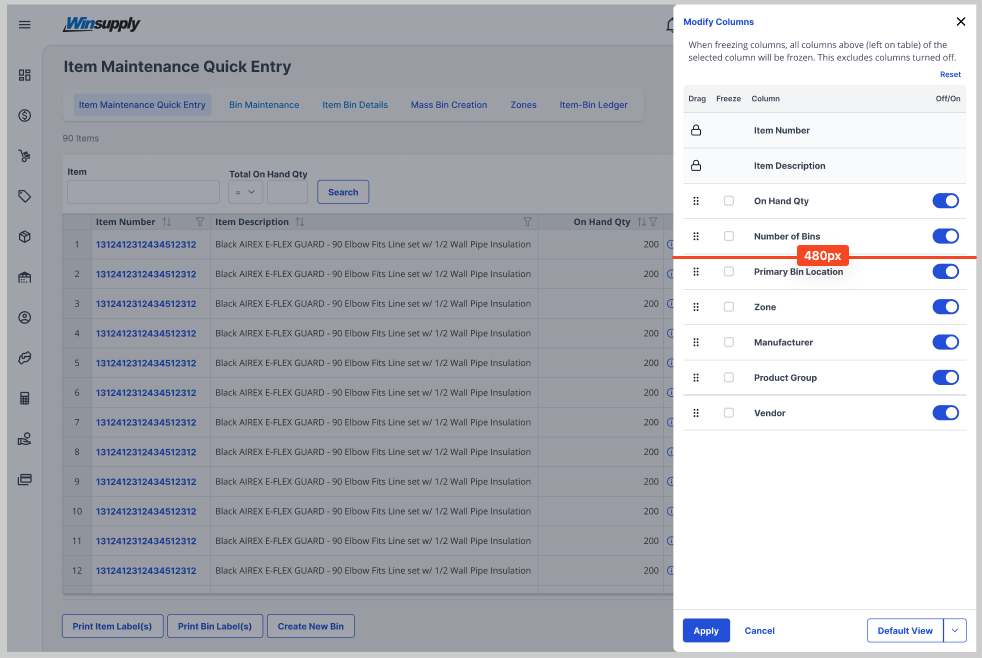
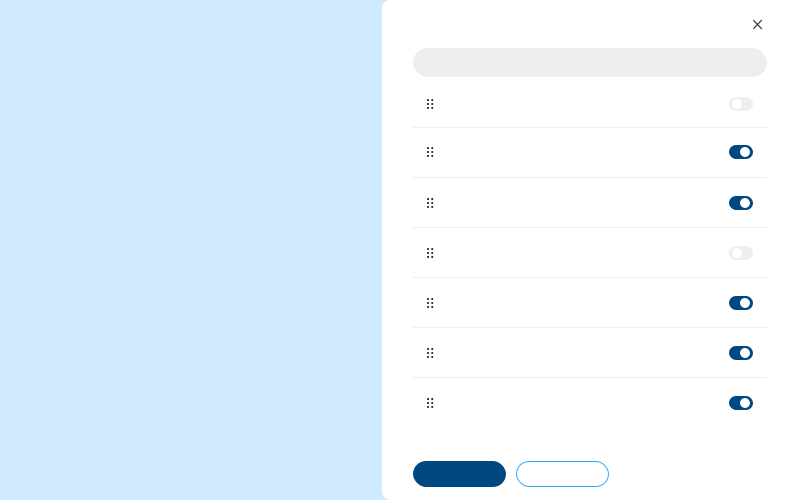
Modify Columns enables a user to reorganize, freeze, and turn columns on and off within a table, especially when the table contains large amounts of information. This component aids in the readability of tables, especially when not all information is necessary for a user to find what they need.

Usage
When to use
- Aiding users in table organization
- At least one column can be modified within a table
When not to use
- Information is displayed outside of a table
- All columns within a table cannot be modified
Video Recap
Best Practice
Example One
The title, "Modify Columns," should be placed in the top left corner to preface the user on how this component affects the associated table.

Example Two
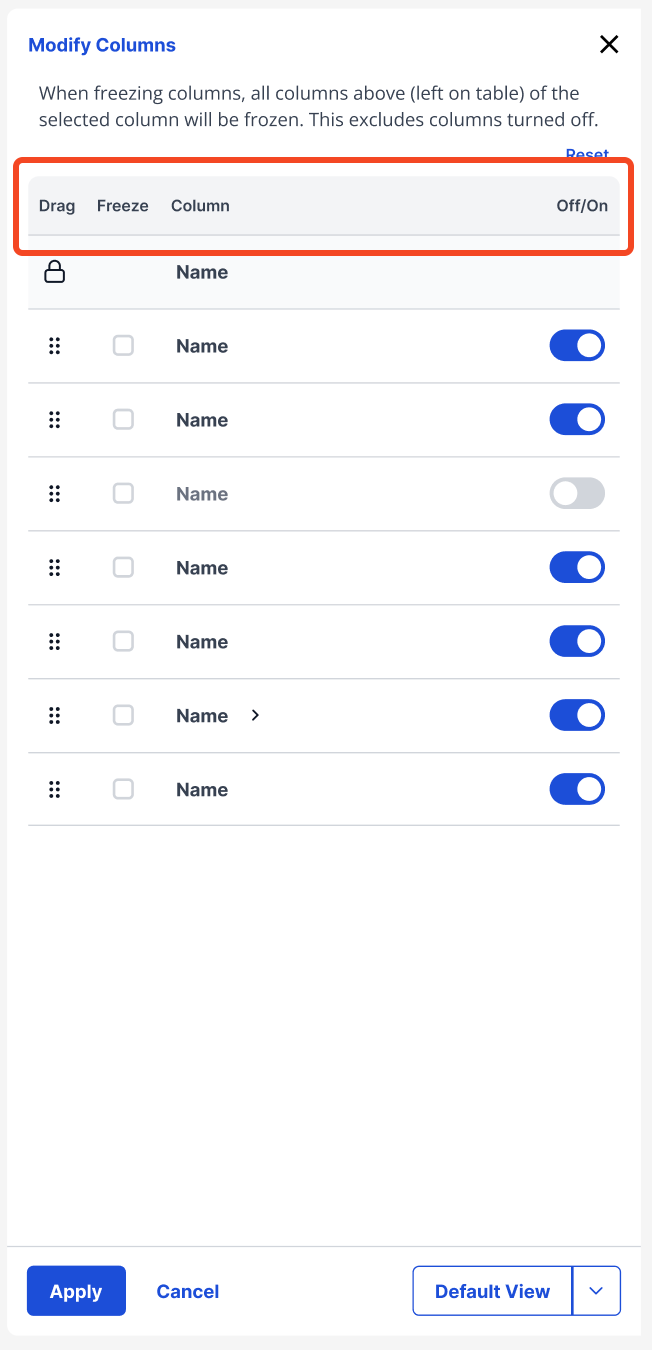
Clear labels (Drag, Freeze, Column, and On/Off) should be placed above each column to indicate the actions the user can take within the table.
Example Three
Example Four
Winsupply Standards


Incorrect Usage
Example One
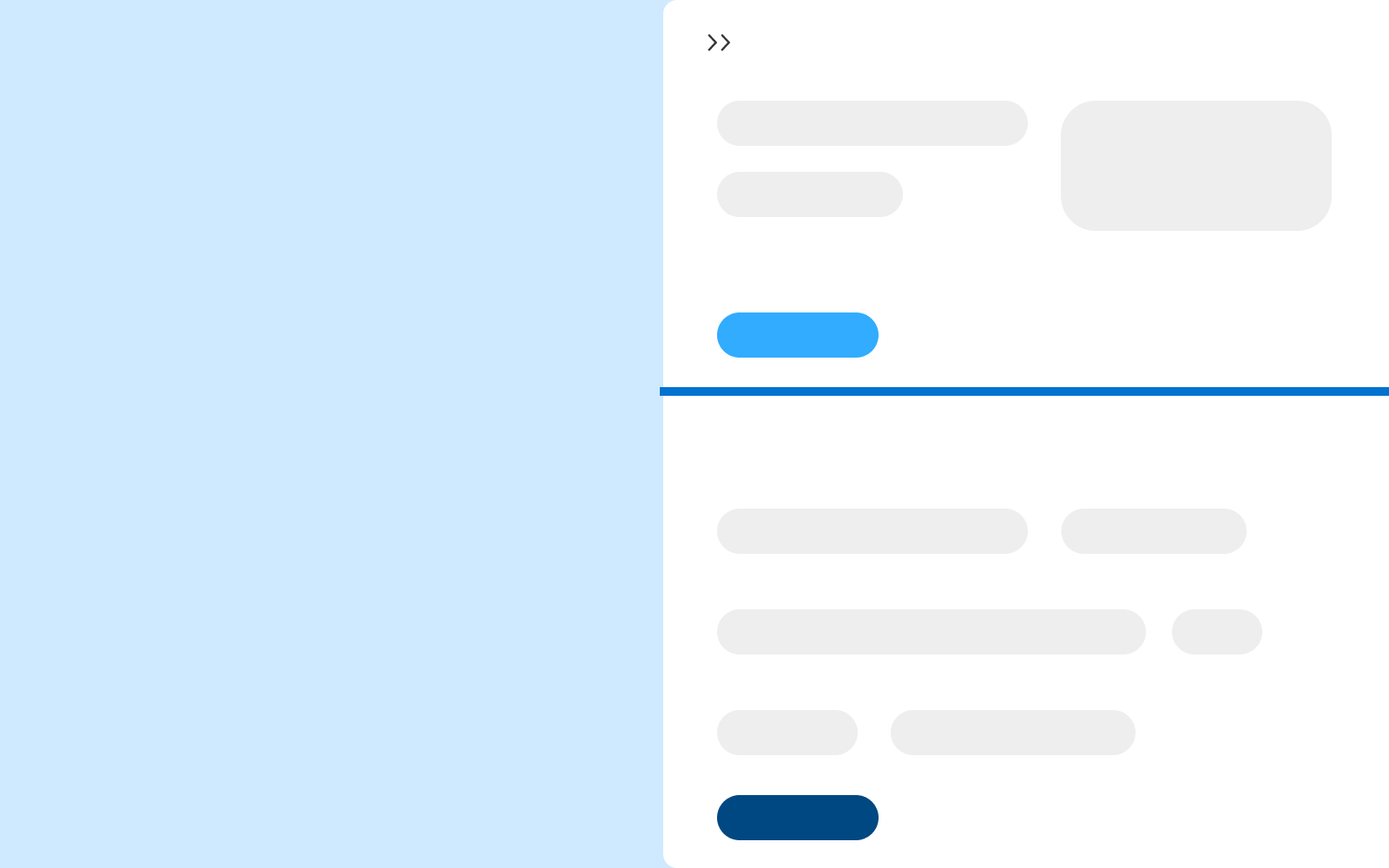
Always bring Modify Columns in from the right.
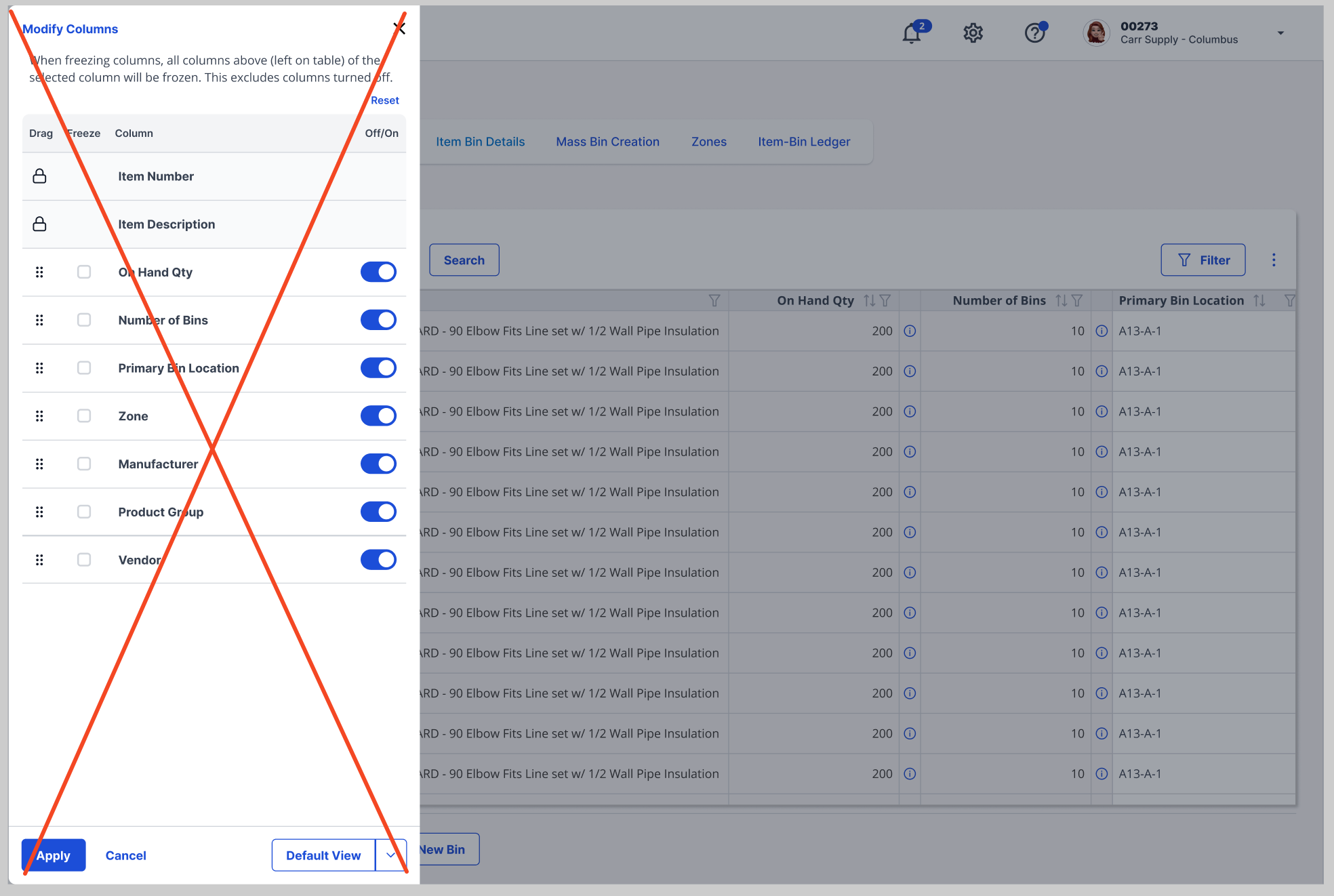
Example Two
Example Three
Example Four
Variants
When a column cannot be turned on/off or moved (also known as "locked"), a lock icon will replace the drag icon, the freeze checkbox will be removed, the on/off toggle switch will be removed, the column background will turn to light gray, and a tooltip will show on hover to notify the user that the column cannot be modified. A user cannot lock a column, that functionality is implemented during development.

Grouped columns can be collapsed, expanded, frozen, enabled, disabled, and sorted. Users can sort either the entire group or the columns within it. To keep groups consistent, individual columns within a group cannot be frozen, enabled/disabled, or moved outside their group. All group-level actions are accessed through the grouped column header.

The Default View button lets users select between setting their current layout as their personal default or reverting back to the system default. The Reset link in the top right of the table restores the view to the user’s personal default or the system default if none was set.

Sizing
Width: 480px